

Vengeance Cheat for PUBG: Battlegrounds
How to install and launch
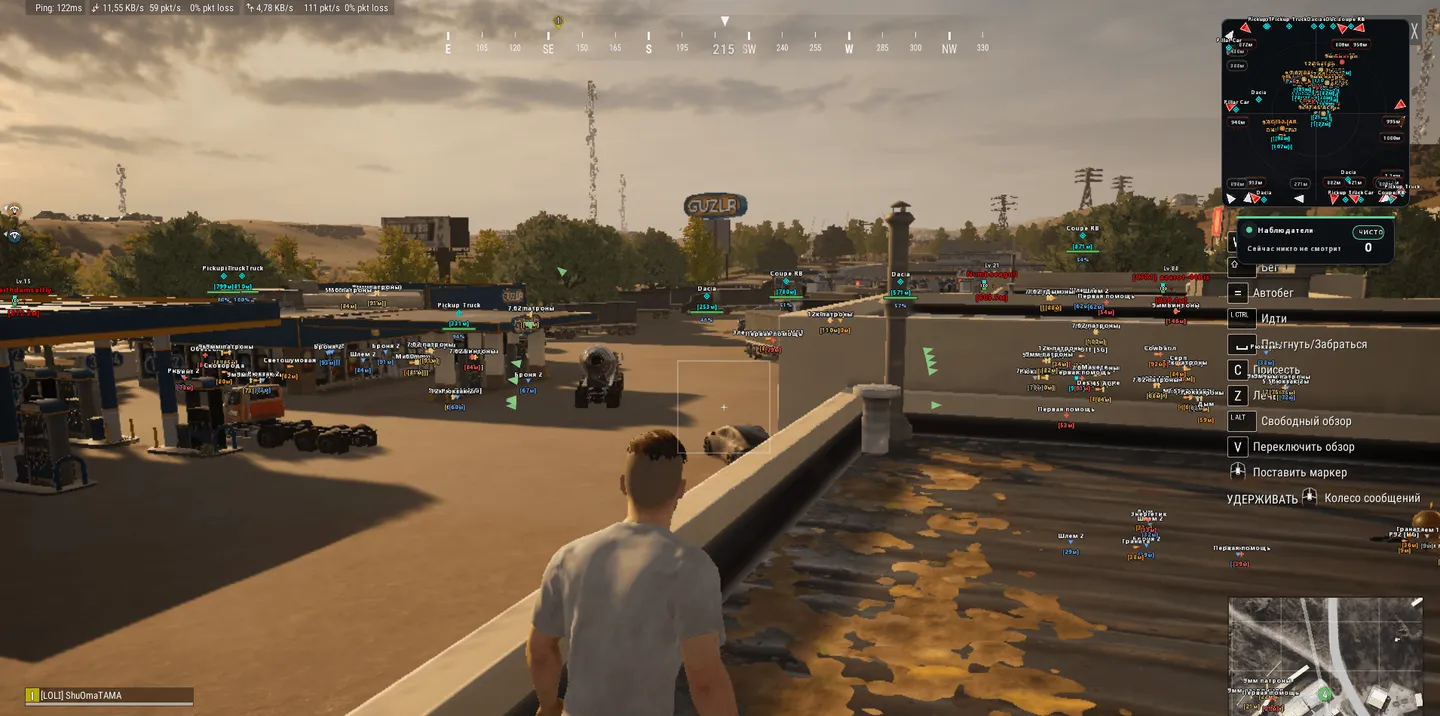
Vengeance for PUBG: Battlegrounds is built as a legit cheat: the aimbot works only while you hold its key, and its prediction marks the real point of impact in green, with bullet drop and target speed already counted. Recoil control picks its strength by weapon type, from ARs and SMGs to DMRs and snipers, and can be pushed up to 200 percent. On players the ESP adds the kill count for the current match, damage and level info and a list of who is spectating you. For loot, a smart filter checks your backpack and hides meds and grenades once you carry enough, while armor, helmets and backpacks are colored by level and vehicles show their health and fuel. With Visible Check on, which the menu calls the basis of legitimacy, ESP shows only enemies you can already see, so the safe setup gives up seeing through walls.
- Windows
- 10(all)/11(all)
- Processor
- All
- Graphics card
- Nvidia/AMD
- Launchers
- Steam
- Streamproof
- yes
- Spoofer
- No built-in/Choose spoofer
List of Hack Features
Legit (Aimbot)
- Aim Mouse - AimBot's main switch. Activates standard auto-aiming.
- Aim-Bot keybind - A key for activating AimBot. Aiming only works while holding this key, making it controlled and natural.
- Prediction - Smart bullet prediction: the AimBot accounts for the target's movement velocity and ballistics (bullet drop over distance), showing a green marker at the real point of impact. Invaluable for shooting runners and long-range targets.
- Recoil control - Automatic recoil compensation (spray control) while firing: the crosshair smoothly pulls down to counter the weapon's kick. Strength is auto-selected per weapon type (AR/SMG/DMR/snipers). Enabled by default.
- Recoil strength % - Manual recoil compensation strength (0-200%). Defaults to 200.
- Crosshair - Enables the display of a static crosshair in the center of the screen.
- Smoothing - The smoothing strength of the crosshair. High values create a smooth, human-like movement, rather than sharp, robotic jerks. This is a key setting for legitness.
- Radius - The size of the aiming area (Field of View). Determines the area on the screen within which the AimBot is activated.
- FoV Type (Circle / Rect) - Select the shape of the aiming area on the screen (Circle or Square).
- AimBone (Aiming bone selection):
- Head - Head (maximum damage, high risk).
- Neck - Neck (good balance of damage and stealth).
- Chest - Chest (lower damage, but larger hit area and maximum stability).
Visuals
- Visible Check - Visibility check. The basis of legitimacy. Displays information only about enemies you can see right now (not through walls).
- Box Type - Select the type of box displayed around the target (Full, Corner, 3D Box, None).
- Names - Displays player nicknames above players' heads.
- Skeleton - Enables display of the enemy's skeleton.
- Distance - Displays the distance to the target in meters.
- Spectators - Displays a list of spectators (those watching you in Spectrum mode).
- Health - Enables the health bar to display a player's health.
- Bone Thick - Slider for adjusting the thickness of the player's skeleton lines.
- Chams - Custom highlighting of player models with configurable colors for visible and invisible (behind walls) targets.
- Stream Proof - Hides the software from all streaming applications (OBS, Discord) or screen recording.
Visuals (combat)
- Kill count - Shows the player's kill count for the current match above their nickname (K.x).
- Player info (dmg/lvl) - Shows extra info above the nickname: damage dealt (S.x) and survival level (Lv.x) of the player.
- Danger warning - Top-left panel: a counter of enemies within 200m plus a list of up to 5 nearest with their name, distance and Lv/K/S. The panel is draggable.
- Off-screen arrows - Arrows at the screen edges pointing toward off-screen enemies (color changes with distance).
- Arrows radius - Radius of the circle along which the off-screen arrows are placed.
- Aiming at me - Warning shown when an enemy is aiming directly at you.
Items (loot)
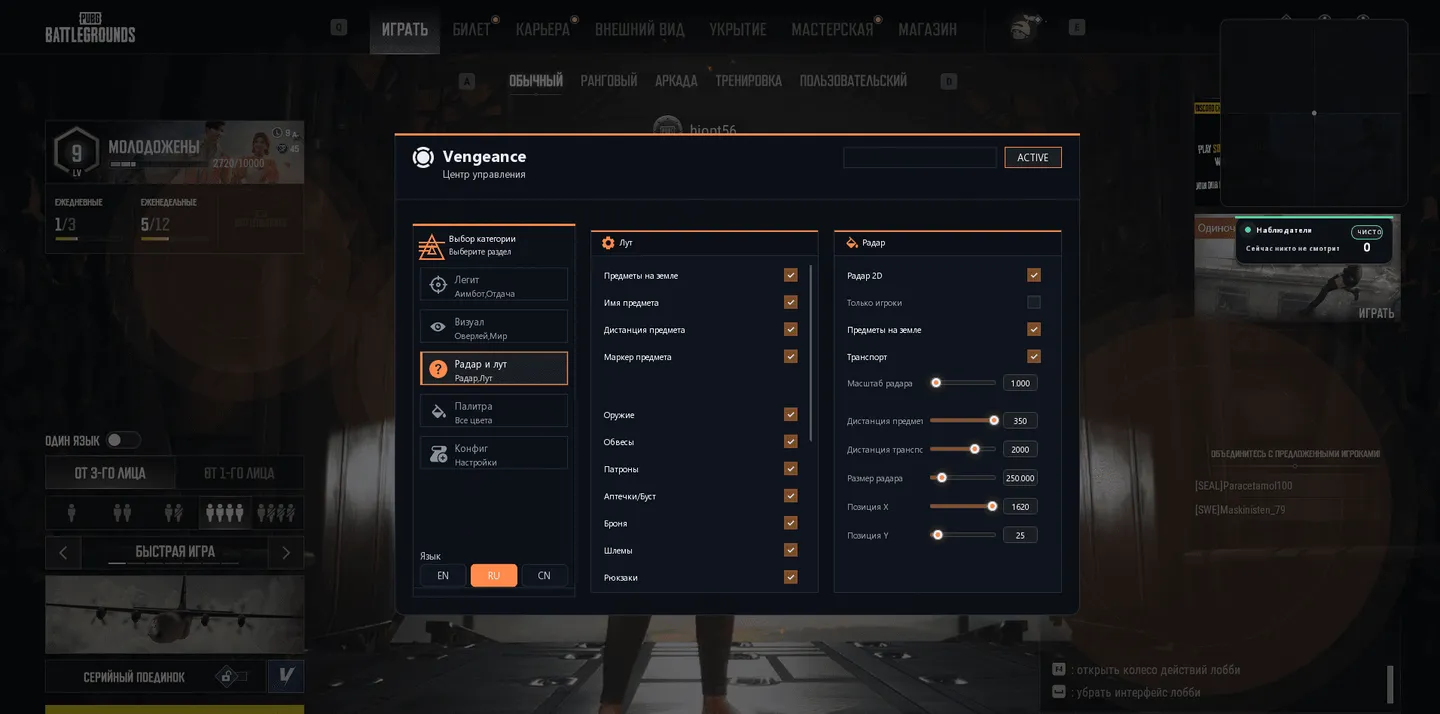
- Dropped Items - Main toggle for loot ESP (shows dropped items on the ground).
- Name / Distance / Rect - Loot sub-options: item name, distance to it, and the marker/box.
- Loot filter - Select which categories to display: Weapons, Attachments, Ammo, Meds/Boost, Armor, Helmets, Backpacks, Grenades, Other. The smart filter also accounts for your backpack contents and hides excess (meds/grenades when you have enough).
- Loot rendering features - Each item gets a convenient type icon underneath, its name is translated into the selected menu language (RU/EN/CN), colored by category, and for armor/helmets/backpacks - by tier (Lv1 gray, Lv2 blue, Lv3 gold).
- Vehicles - Vehicle ESP: vehicle name and distance to it.
- Vehicle Health - Shows the vehicle's durability (HP) - see how much is left before it blows up.
- Vehicle Fuel - Shows the vehicle's fuel level - see how far it can still go.
- Grenade warning - Warning for incoming grenades: name, distance, a fuse timer bar, and trajectory prediction (arc + blast point).
- Airdrop / Deathbox - Shows airdrops and deathboxes together with their contents (up to 6 items, colored by category).
Radar
- Radar2D - Main toggle, displays a 2D radar.
- Only Players - Filters the radar to display only players, hiding unnecessary information.
- Dropped Items (on radar) - Shows loot on the radar (markers colored by category).
- Vehicles (on radar) - Shows vehicles on the radar.
- Radar Zoom - Radar scaling (allows you to zoom in or out on objects).
- Radar Size - Slider for changing the overall size of the radar window on the screen (from 200 to 700).
- X size / Y size - Sliders for precise radar positioning along the X and Y axes on your monitor.
Palette (colors)
- Color Name - Player nickname color.
- Color Distance - Distance text color.
- Color 2D Box - Color of the 2D box around the enemy.
- Color Bone - Color of the skeleton lines.
- Color Fov - Color of the AimBot's aiming zone (circle/square).
- Color Crosshair - Color of the static crosshair in the center of the screen.
- Loot colors - Per-category loot color settings: Weapons, Attachments, Ammo, Meds, Armor, Helmets, Backpacks, Grenades, Other.
Config (saving and loading settings)
- Input Name - Enter a name for your new configuration file.
- Create New - Create and save a new configuration file with the entered name.
- Rename - Rename an existing configuration file selected in the list.
- Load Selected - Load settings from the configuration file selected in the list (applies them to the current session).
- Save Selected - Overwrite the current menu settings with the selected configuration file.
- Delete - Permanently delete the selected configuration file.
- Refresh List - Force a refresh of the configuration list (useful if files were transferred manually).
The developer may change the program's functionality at any time, but we always do our best to keep this information up to date


