


Vengeance Cheat for ROB RUN
1 / 3
How to install and launch
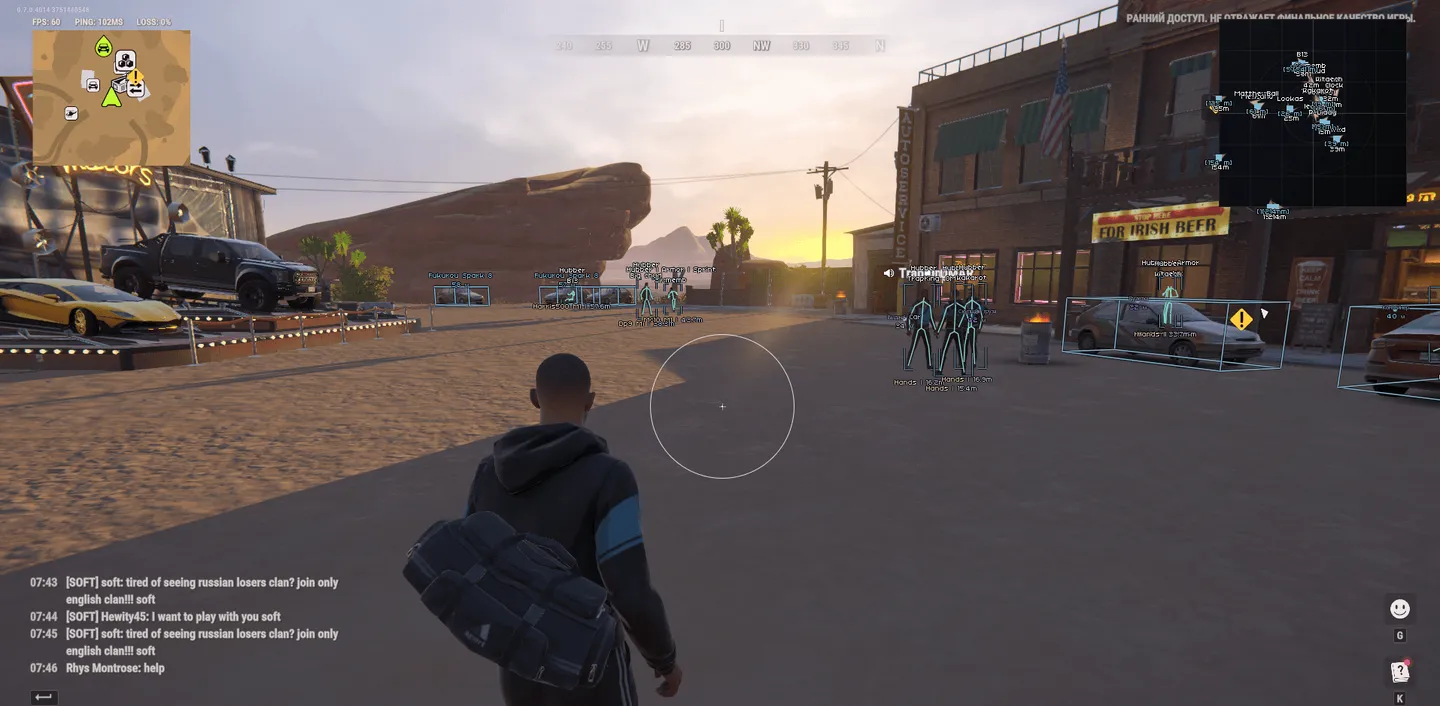
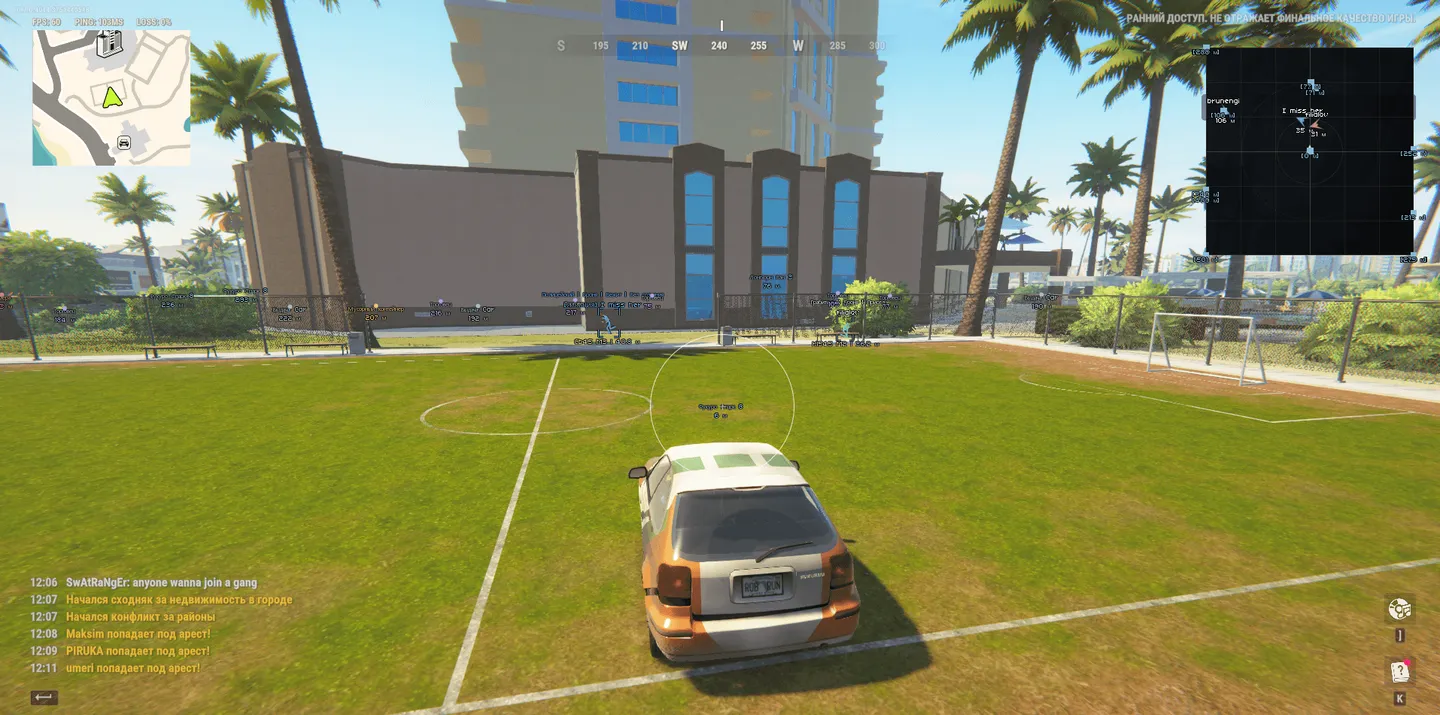
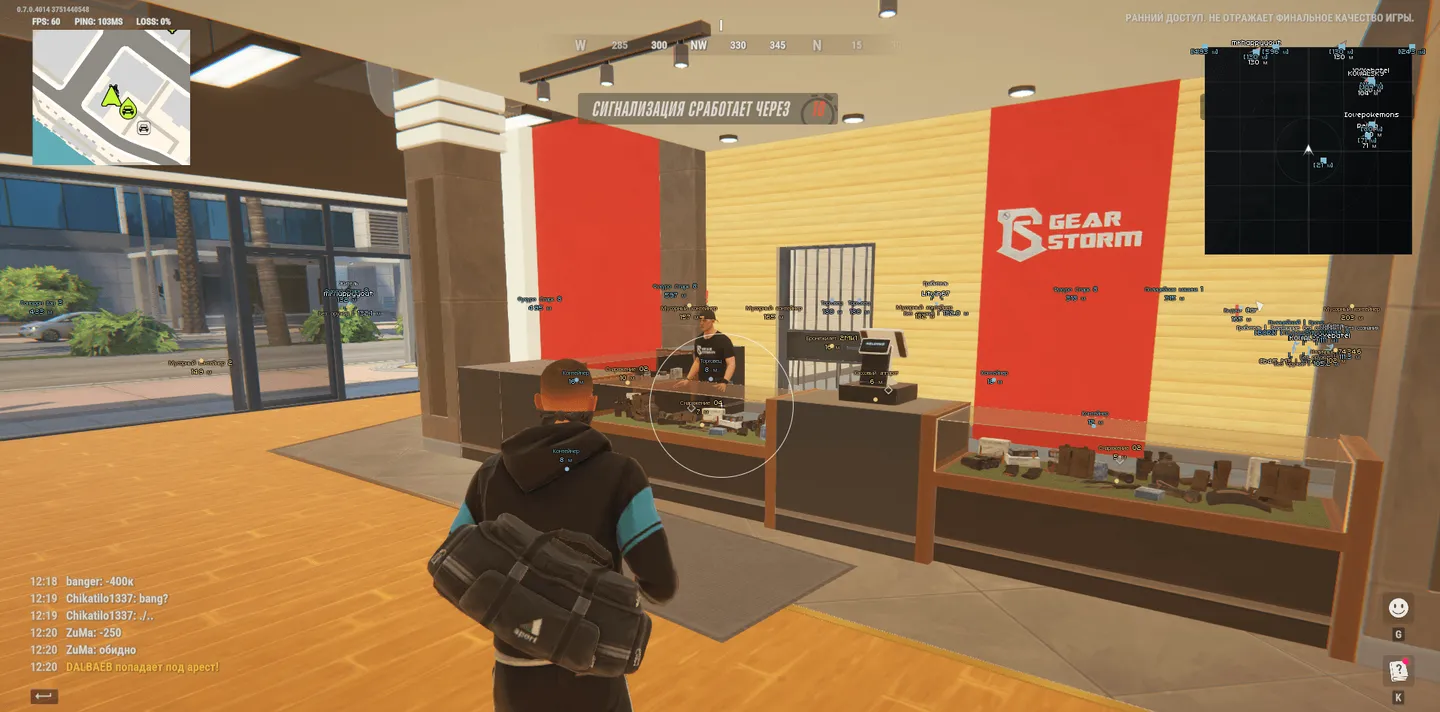
Vengeance for ROB RUN helps you assess players and vehicles before closing in: see a character's role, held item and available details about a vehicle's owner or cargo. Separate markers show loot, containers and interaction points. During a firefight, BattleMode hides allies and world labels, while the radar smoothly zooms in on nearby contacts. Aim is configured separately: choose the head, neck, chest or pelvis, then set the targeting distance and smoothing.
Status:
undetected
- Windows
- 10(all)/11(all)
- Processor
- All
- Graphics card
- Nvidia/AMD
- Launchers
- All
- HWID Spoofer
- No built-in/Choose spoofer
List of Hack Features
124 features in 12 groupsAimbot
- Hold an assigned keyboard key or mouse button to aim; right mouse button is the default
- Target-selection FOV from 10 to 500 px; eligible targets are ranked by distance from its centre
- Smoothing from 1 to 30; higher values make aim movement slower and smoother
- Choose Pelvis, Chest, Neck or Head, provided the selected joint is available
- Set maximum targeting distance from 10 to 1000 m
- Allow NPC targets; dead characters and the local character are excluded
- Draw a configurable-colour FOV circle independently of aim activation while visual rendering is enabled
- Aim stops on key release, an open menu, lost game focus or insufficiently fresh camera and skeleton data
- Hold the left mouse button to repeat fire with non-automatic pistols; repetition follows the weapon interval and stops on an open menu or lost game focus
BattleMode
- Keep opponents on player ESP and radar while hiding vehicles and world labels; preserve saved category switches
- Toggle with an assignable keyboard or mouse button, F6 by default; holding the key does not repeat the toggle
- The toggle works with the game focused and menu closed; capturing a bind does not activate the mode
- Use actual attacker and defender sides in clan battles; hide your side and unknown affiliation when team context is active
- Outside clan battles, hide members of the same non-empty clan and allied police when your role is police
- Exclude dead characters and ordinary NPCs; police NPCs may remain opponents for non-police roles, subject to the Police filter
- Show a BATTLE MODE indicator beside an enabled radar; this visual filter does not change aimbot target selection
Player ESP
- Enable player ESP independently of radar
- Display nicknames with optional clan tags, COP markers and entity IDs
- Draw skeletons from measured joints with smoothing that retains segment lengths; short data gaps can be covered for up to 150 ms
- Reset skeleton smoothing on model, player or view changes, teleports and scene exit; retry alternative anchors for incomplete model data
- Colour skeletons by role: white for civilians and residents, red for robbers, blue for police
- Choose Full or Corners screen-space boxes
- Draw volumetric silhouettes with shading, soft highlights and edge glow, formed from the model surface in its current pose
- In the new ESP style, civilians are drawn as a model outline including clothing
- Display distance in metres and limit player ESP range from 10 to 1000 m
- Adjust silhouette effect strength; silhouette colour and opacity settings are kept
- Show a thin health bar only when current and maximum health are available
- Filter police separately with a dedicated colour and COP label
- Toggle ordinary NPCs, dead characters and the local character separately; BattleMode adds its own filtering
- Preview boxes, skeletons, labels and supported indicators inside the menu
Equipment and player labels
- Show icons of the weapon or item held by players instead of its name, falling back to text when no matching icon exists; on by default with a separate toggle; weapon-model designations are preserved
- Indicate armour presence, with amount or durability only when known; this is not a separate full armour bar
- Show carried cargo and accumulated player points when available
- Toggle role labels and clan tags separately
- Display available states such as firing, sprinting, crouching, reloading, arrest and knockout
- Toggle reload, knockout and current-interaction indicators separately
- Add entity IDs to player labels
- Adjust skeleton line thickness from 1 to 4
- Experimental action timers: a countdown appears when the game provides the end time of an active action
Vehicle ESP
- Show cars and helicopters independently of vehicle radar markers
- Draw oriented 3D boxes when vehicle dimensions and orientation are available
- Display the vehicle name above its distance, preserving chosen colour and opacity
- Set world vehicle ESP range from 20 to 1500 m
- Show an available owner name or the unowned/available state
- Count detected characters associated with a vehicle; the count is not guaranteed to cover every seat
- Show available engine state, cargo presence and speed in km/h
- Car navigator: inside the car, show its name, engine state and cargo presence when available
- Enable nearby vehicle details separately and set detail distance from 10 to 500 m
- After leaving the car, show an arrow and distance to it; if the car disappears from data, its last known position is marked separately and kept for up to two minutes
Items and containers
- Mark static and random pickups and cash nodes, with known stack counts or cash amounts
- Set loose-item range from 10 to 1000 m within the overall world-object range
- Show loot nodes, bags and available vehicle remains; markers do not reveal every container's full inventory
- Mark containers and available furniture, building and plot loot stores
- Mark event containers and cash-dispensing containers with their own markers and filters
- Keep objects known to be empty or taken visible; unknown state is not classified as empty
- Show known container lock states and an Empty mark; when opening requires an item, show its name and icon when available
- Toggle cargo objects as a separate layer
- Experimental container contents, showing Contents unknown when the item list is unavailable, and an experimental drilling timer; both off by default
- Set overall world-object display distance from 10 to 1000 m
- Display centred two-row labels, with the name above the distance
- In the new ESP style, item icons sit on the right with the name and white distance on the left; long labels are limited in width
- Suppress overlapping labels using distance order and item priority over vehicles, with a bounded label count
- Softly dim loot markers inside the aim FOV circle to keep the view clear; markers outside it stay sharp, with a smooth transition
- Translate item, container, display and vehicle names into Russian while preserving weapon designations, nicknames and owner names
- Keep the last successful marker through an unknown read state for up to 1.5 seconds; confirmed removal or empty state applies immediately
Cameras and interaction points
- Mark security cameras and their broken state when known; discovery is batched and cached, so new markers may appear with a delay
- Camera ESP shows positions, not access to camera video feeds
- Mark stationary guard posts separately from police characters
- Show available alarms and security panels
- Toggle medical cabinets and medical locations separately
- Mark available doors and interaction points, including supported vault locations
- Use separate filters for additional interaction points and points of interest
- Show traders and vehicle spawn or service points
- Mark hideouts and available workbenches, including supported cargo-processing and exchange locations
- Toggle banks and roulette locations separately
Radar
- Show a grid radar with character contacts and a compact local direction arrow
- Rotate with the camera heading or save a fixed-orientation preference
- Set radar size from 100 to 400 px and manual zoom from 0.05 to 5.00
- Position the radar with Radar X and Radar Y
- Drag the radar with the left mouse button while the menu is open; the position is saved in the profile
- Display player direction arrows using look direction when known, otherwise body heading
- Clamp out-of-range contacts to the edge and dim them; optional distances distinguish distant contacts
- Toggle vehicle icons independently of world vehicle ESP; BattleMode hides vehicles
- Toggle contact names and distances or keep icons only; vehicle contacts use icons without names
- Show the vehicle HUD beneath the radar, moving with it, or top right when the radar is off; player and vehicle labels stay inside the radar frame without covering the card
- Apply relevant BattleMode, police and NPC filters independently of ordinary player ESP
- Choose a dedicated radar-player colour; police use the police palette
- Show a police warning as a compact BLEAK-style card with a shield and a separate distance plate
- Nearby players HUD: a compact list of nearby players instead of a single-target panel, sorted by distance with the closest on top
- Show nickname, distance and role such as police or robber in the HUD, with in-game icons of the held weapon instead of its name and a separate empty-hands mark
- Set nearby players HUD range and number of rows
- Drag the nearby players HUD with the mouse while the menu is open; it is placed top left of the radar by default
- In BattleMode the nearby players HUD lists only opponents; separate HUD styling for the Vengeance and BLEAK themes
Radar auto zoom
- Smoothly zoom toward eligible nearby living contacts and return to manual zoom as they move away
- Set reaction range from 30 to 500 m
- Set maximum auto zoom from 0.05 to 5.00 without zooming out below the manual baseline
- Adjust response time from 0.15 to 2.00 seconds; lower values react faster
- Exclude the same non-empty clan from zoom triggers; dead characters, ordinary NPCs and allied police are excluded, with additional BattleMode filtering
- Preserve the manual zoom value and consider radar size to keep a triggering contact away from the edge where possible
Colours and opacity
- Set separate colours for names, boxes, skeletons, weapons, distance, health and police
- Set separate world colours for vehicles, objects, items and cash, containers and cargo, medical objects, security and cameras, traders and services
- Adjust colour and opacity for supported elements, including item-label opacity
- Choose separate colours for the aim FOV circle and menu accent
- Restore the current theme's default palette
- Set World label size from 9 to 20 px; the active native renderer uses the loaded ESP font for main world text, so this does not scale every label
Interface and controls
- Open or close the menu with Right Shift; aiming pauses while the menu is open
- Use F4 at the normal startup continuation stage; it is separate from the menu key
- Toggle visual rendering from the sidebar independently of aim activation
- Navigate Aim, Visuals, World, Radar, Misc and Config sections with their own subtabs
- Switch between Russian and English immediately, including object names, armour, roles, actions, units and vehicle details
- Choose 75% or 85% menu scale with automatic fitting to available screen space
- Configure the animated menu background and accent colour
- Search Russian and English setting names and edit settings directly from results
- Switch between the reworked ESP style (separate font, light text relief, tighter labels) and the previous look with a button next to the menu search; the choice is saved in the config
- View available counts for players, skeletons, vehicles and world objects, plus read time and snapshot age
- Keep world labels and geometry beneath the menu controls
- After ROB RUN.exe is confirmed absent for two seconds, stop the session and terminate Discord.exe processes; Ctrl+F4 pauses the running session without closing Discord
Configuration profiles
- Enter a profile name and browse saved JSON configurations
- Create a new named profile without overwriting an existing file
- Save current settings under the entered name; saving can overwrite an existing profile
- Load visuals, aiming, radar, BattleMode bind, colours and appearance from a selected profile
- Rename or delete a selected profile and refresh the list
- Autosave menu changes to the current default configuration independently of named profiles
- Autosave path: C:\Windows\System\robrun.json; named profiles: C:\Windows\System\configs_robrun


