

Ancient Cheat for Wardogs
How to install and launch
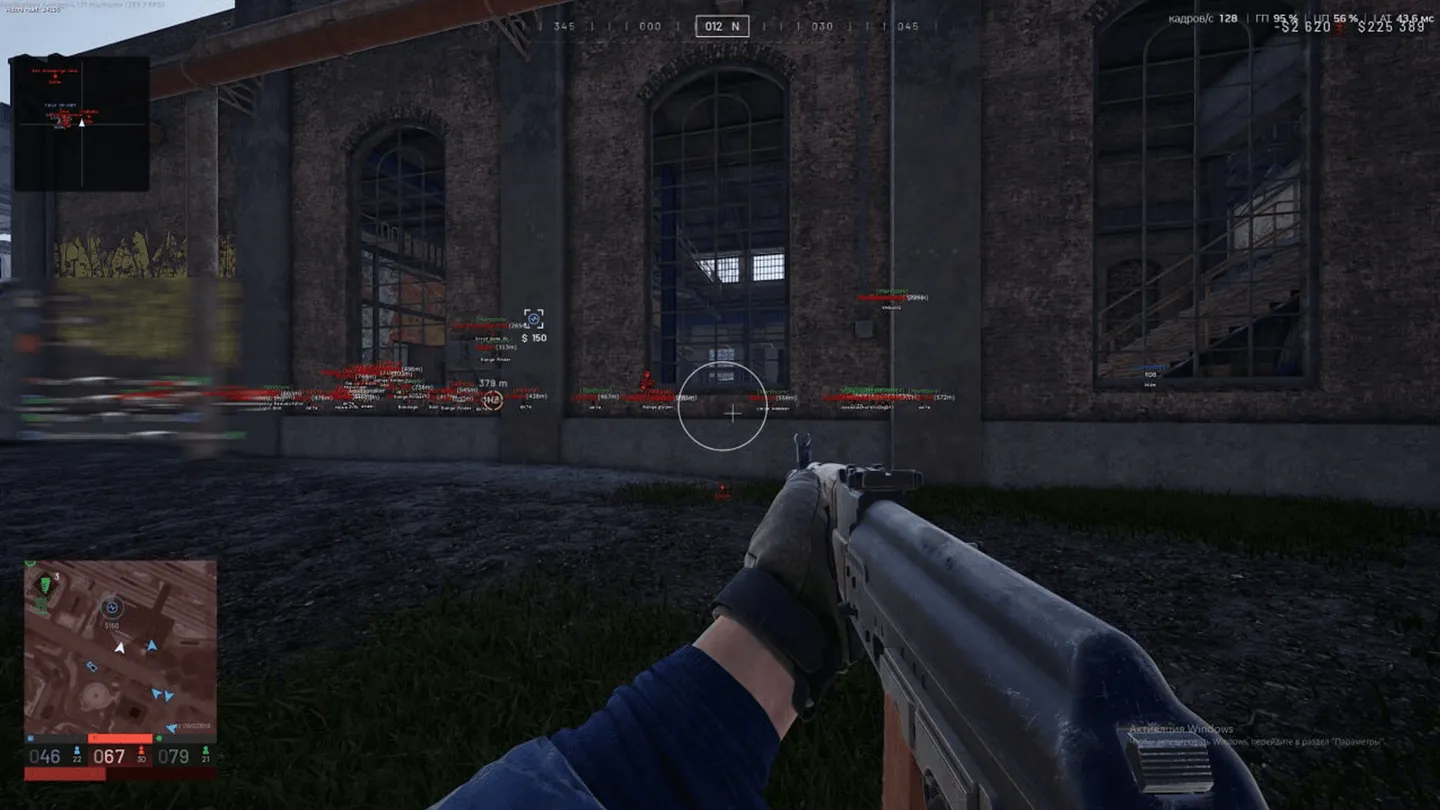
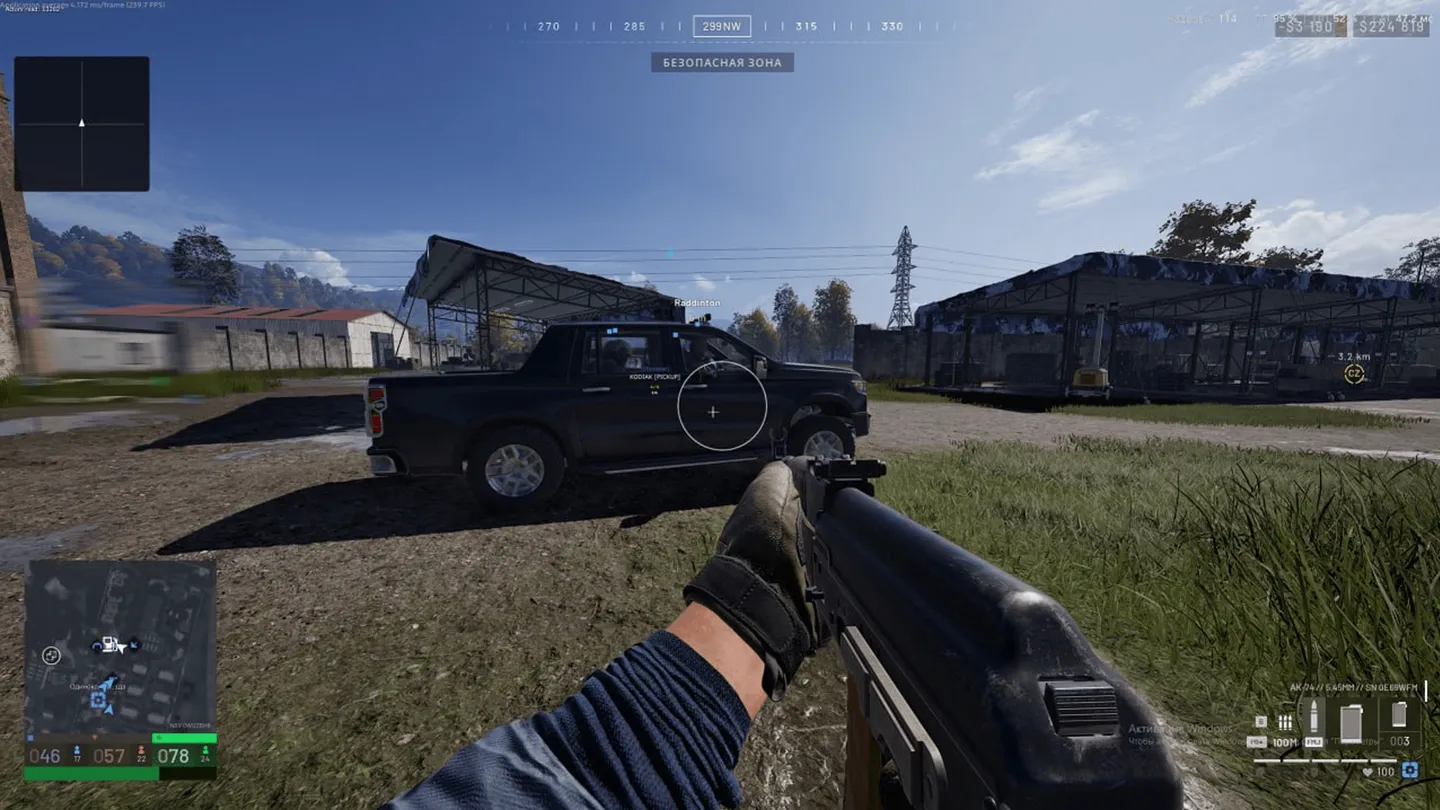
Ancient for Wardogs puts more detail into vehicles and structures than into players. On each vehicle it shows land or air, the category (artillery, tank, transport, combat or spawn), the team, occupied seats and who is inside. Structures get the same labels: a Talon 9K-SAM, an L81 mortar or a Vanguard CIWS shows up with its side and occupied seats, and type filters hide the rest. For players the cheat keeps the basics and adds arrows toward enemies outside your view. Loot ESP is plain: item names, loot bags and distance, in colours you pick. The radar shows the same objects as the ESP, knocked players included, and can hide allied vehicles and buildings. With your view it turns too, and an In game Radar option sits next to it. The Mortar Helper takes over the aiming at a mortar: you mark the target on the map, follow the helper and fire once the On target indicator appears. Magic Bullet picks its targets independently of the aimbot, with its own key, FOV, distance and bone, and Hit Chance sets how often its shots connect. On the aimbot side there is also Silent Aim, and the weapon tweaks, from No Recoil and No Spread to Instant Hit and Infinity Focus, carry a warning mark in the menu itself.
- Windows
- 10(all)/11(all)
- Processor
- AMD
- Graphics card
- Nvidia/AMD
- Launchers
- Steam
- Spoofer
- No built-in/Choose spoofer
List of Hack Features
Aimbot
- Enable
- Aim Mode: Memory
- Aim Key
- Aim Bone: Head / Neck / Body / Pelvis / Nearest
- Prediction
- FOV
- Distance
- Smooth
- Instant Scope
- Instant Hit
- Silent Aim
- Visible Check
- Perfect Visible Check
- Ignore Teammates
- Ignore Player In Vehicle
- No Sway
- No Spread
- No Recoil
- Infinity Focus
- Draw FOV
- Draw Target Point
- Target Point Size
Magic Bullet
- Picks its own target, independently of the aimbot
- Hit Chance
- Own key bind
- FOV and Distance set separately from the aimbot
- Bone: Head / Neck / Body / Pelvis / Nearest
- Only Visible
- Ignore Teammates
- Ignore Players in Vehicles
- FOV circle and target point drawn in red
- Target Point Size
Visuals (player)
- Enable
- Draw Box
- Draw Skeleton
- Chams on player models, including armored characters, colored by per-bone visibility
- Glow outlines: Radius / Intensity
- Draw Name
- Draw Team Name in faction colors
- Draw Health
- Draw Weapon: weapon category multiselect, for enemies and teammates
- Original in-game weapon icons
- Armor and Helmet: panel for the aim target, text for all enemies
- Draw Distance
- Out of FOV Arrows: visible / invisible colors, distance
- Render Distance
Visuals (vehicle)
- Enable
- Filters: Land / Air
- Categories: Artillery / Tank / Transport / Combat / Spawn
- Draw Allies
- Draw Name
- Original in-game icons
- Draw Team Name
- Draw Occupied Seats
- Draw Players Inside
- Draw Distance
- Render Distance
Visuals (loot)
- Dropped Item Names
- Loot Bags
- Original in-game icons
- Distance
- Custom name and distance colors
- Render Distance
Visuals (buildings)
- Talon 9K-SAM, L81 Mortar, Stingray, Vanguard CIWS
- Loudspeaker, FOB
- Building Type Filters
- Draw Allies
- Draw Name
- Original in-game icons
- Draw Team Name
- Draw Occupied Seats
- Draw Distance
- Faction-based team colors
Radar
- Players, vehicles, buildings and loot
- Knocked players
- Ally vehicle and ally building filters
- Separate color for every object type
- Name and distance toggled per object type
- Names above markers, distance below
- Rotates with your view
- Radar Range and Marker Size
- Drag and resize with the mouse
- In game Radar
- Icons on the in-game Radar and the Tactical Map
Mortar Helper
- Works while you are at a mortar or artillery
- Target set with a marker on the map
- Aiming guide toward the marker
- On target indicator shows when to fire
- MIL and azimuth for map pings, calculated from the trajectory
- Top Down View: own key bind, predicted impact marker
Free Camera
- Camera detaches from your character
- Arrow keys move it
- Shift speeds the movement up
Settings
- Config System
- Menu language: English / Russian / Chinese
- Overlay FPS limit: 60–240
- Font size set separately for every overlay text element
The developer may change the program's functionality at any time, but we always do our best to keep this information up to date


