


SMG Cheat for Wardogs
How to install and launch
SMG is a Wardogs cheat for players who want to read the whole map: its ESP shows players through walls, and the World tab marks vehicles, containers, vendors and placed IEDs class by class. Above each player sit the nickname in a faction color for Valkyra, Lonestar or Manticore, the weapon under its real in-game name and K/D colored in four steps, from below 2 up to 10 and over. Vehicles carry their state right in the caption: durability with a destroyed engine mark, fuel with a pierced tank mark, seats taken out of total, and the owner. Too much text on screen? Only On Hover keeps those lines near the crosshair alone, within a radius you set. For the aimbot, bullet lead accounts for air resistance and weapon zeroing, while the RPG-7, MAAWS and MGL-40 get a prediction of their own. Silent Aim is back. Misc now adds No Sway to No Recoil and No Spread, next to three on-screen informers for your kills, your deaths and enemies nearby. There are no chams and no offscreen arrows in the menu.
- Windows
- 1021h2-22h2/1121h2-23h2
- Processor
- All
- Graphics card
- Nvidia/AMD
- Launchers
- Steam
- HWID Spoofer
- No built-in/Choose spoofer
List of Hack Features
62 features in 5 groupsAimbot
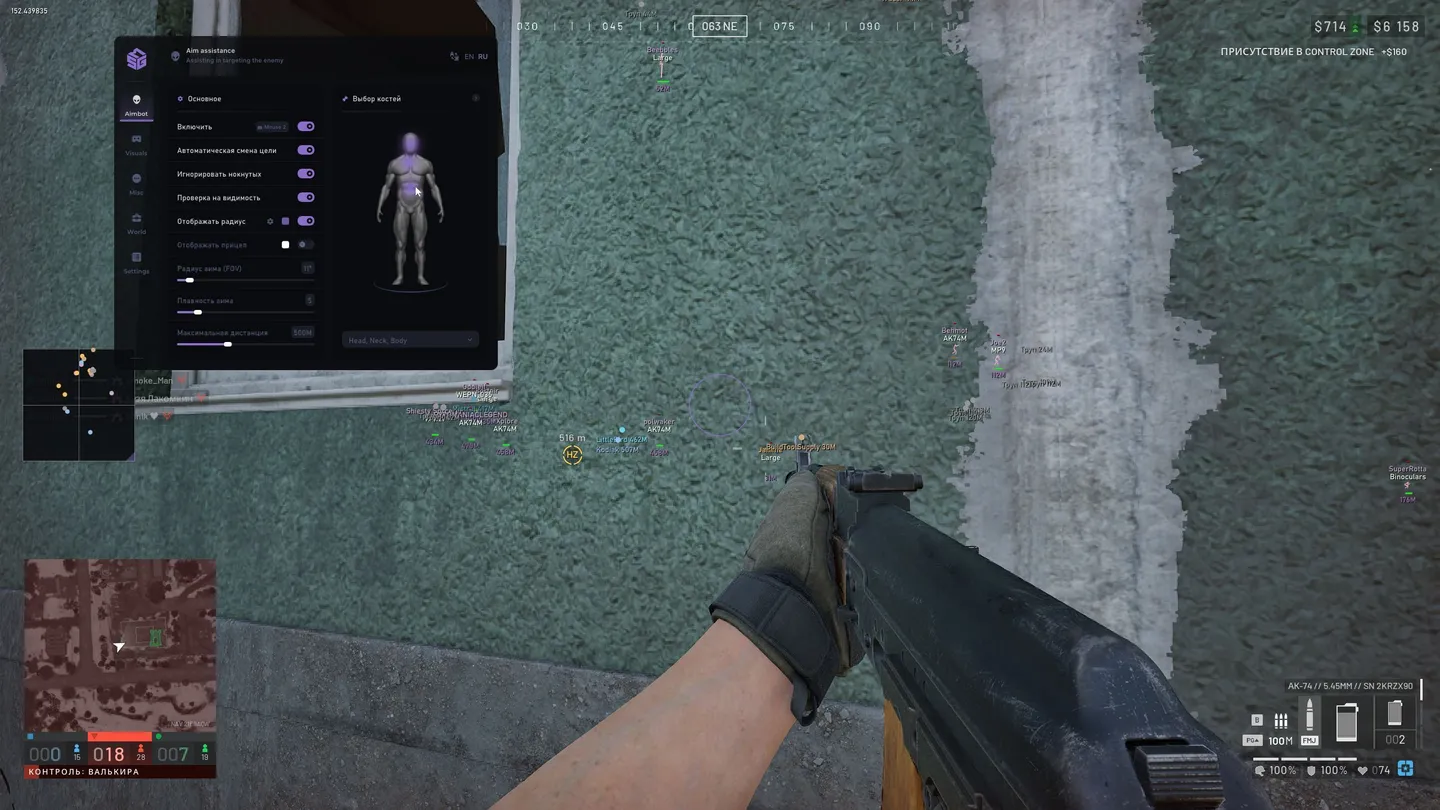
- Enable — turns the aimbot on; the activation key sits on the same row
- Silent Aim — shots go to the target without the camera turning toward it
- Auto Switch — moves to the next target on its own
- Ignore Downed — skips players who are already on the ground
- Visible Check — locks only onto targets that are actually in view
- Show Radius — draws the capture circle on screen
- Circle Segments — how finely that circle is drawn
- Circle Thickness — line weight of the circle
- Show Crosshair — a crosshair of your own in the middle of the screen
- Field of View — size of the capture circle in degrees
- Smooth — how fast the aim travels to the target
- Launcher Prediction — lead for grenade launchers: RPG-7, MAAWS, MGL-40
- Bullet Prediction — leads the target with air resistance and weapon zeroing taken into account; hits better at long range, on vehicles and on fast targets
- Maximum Distance — how far the aimbot reaches
- Interactive Bone Picker — a 3D figure where bones are marked by hand, several at once such as head, neck and body
- Bone Priority — which of the marked bones is taken first
ESP
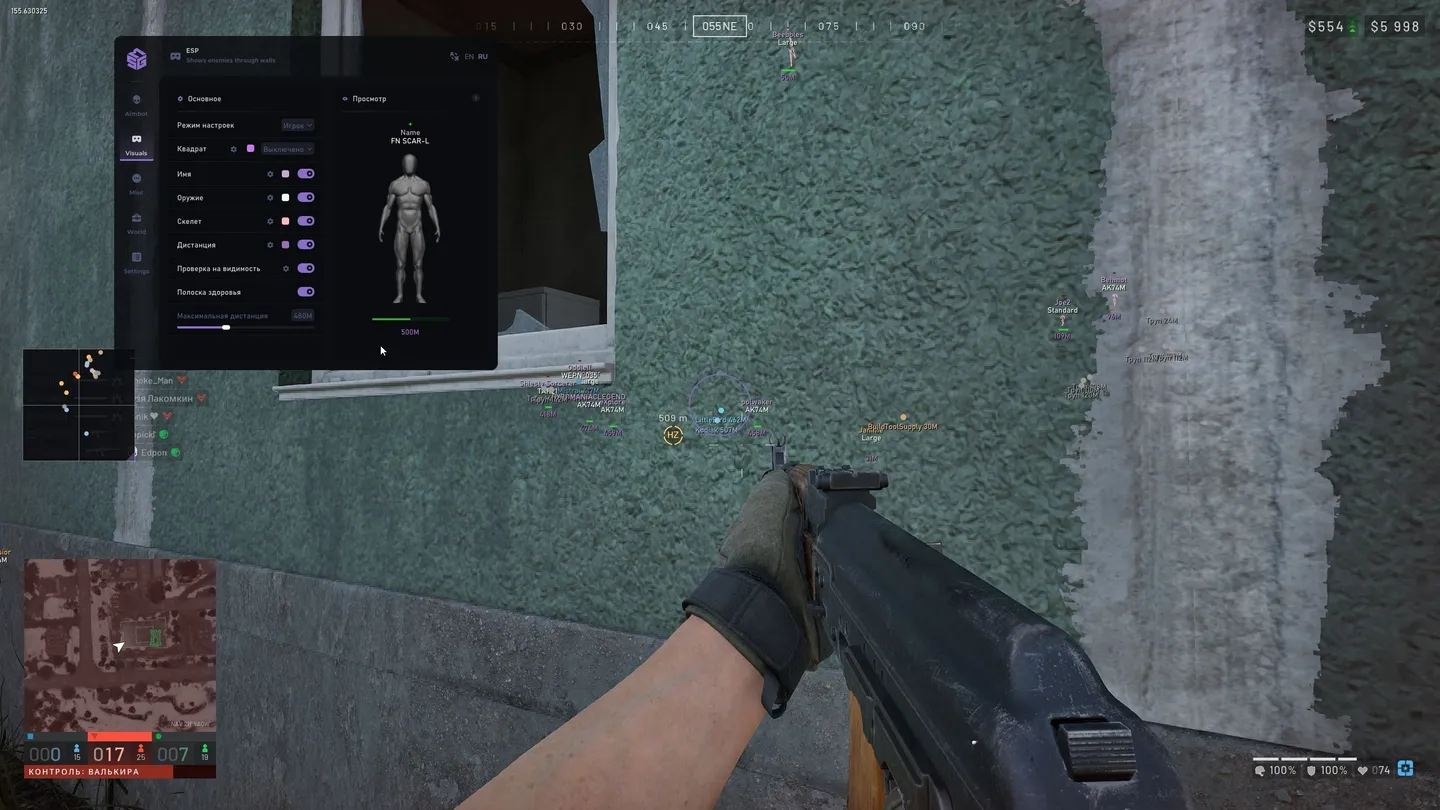
- Box Mode — the box is off, plain or drawn by corners only
- Visible State — the box changes color with whether the target is in view
- Filled — fills the box in
- Name — the nickname above the target, with a font size of its own
- K/D — the kill/death ratio above players, colored by value: below 2, from 2, from 5, from 10, each color set on its own; K/D below 2 can be hidden
- Faction Name Colors — the nickname colored by faction: Valkyra, Lonestar, Manticore, each color set on its own
- Downed Color — a separate color for players on the ground
- Weapon — what the target is holding
- Skeleton — the model skeleton, with its own color, line thickness and range
- Distance — how far away the target is
- Visible Text / Invisible Text — the words shown for a target in view and out of it, each in its own color
- Health — health shown as a strip beside the box
- Maximum Distance — ESP range
- Live ESP Layout Preview — the whole layout on a dummy, elements dragged into place before the match
Misc
- No Recoil — removes recoil
- No Spread — removes weapon spread
- No Sway — removes weapon sway
- Radar — a separate radar window over the game
- Zoom — how much of the map the radar holds
- Background — the radar backdrop
- No Resize — locks the radar size
- My Direction — an arrow for where you are looking, with its length
- View Direction — the same arrow on targets, with length and thickness
- Players — colors for visible players, for those on the ground and for the mark outline
- Fov Changer — changes the field of view
- Zoom Hack — magnifies the picture on a key of your own; the zoom level is set next to it
- Informer: Enemies Nearby — counts enemies within an adjustable radius; its own background, font size and colors
- Informer: My Deaths — your deaths on screen, switched on its own, with its own background, font size and colors
- Informer: My Kills — your kills on screen, switched on its own, with its own background, font size and colors
World
- Wheeled Vehicles, Tracked Vehicles, Air Vehicles, Stationary Vehicles — each class switched on its own
- Mounted Weapons, Dropped Items, Containers, Vendors, Grenades, placed IEDs, Corpses — the same, class by class; Grenades names the kind: grenade, smoke, molotov, C4, mine, throwable
- Show Friendly / Own Faction — vehicles of your own side marked apart from everyone else's
- Vehicle info lines — set per vehicle class, each line switched off on its own; Only On Hover mode shows them only near the crosshair, with an adjustable radius
- Vehicle Info — right in the caption: durability with a destroyed engine mark, fuel with a pierced tank mark, crew as seats taken out of total, owner
- Show Title / Show Point / Show Distance / Show Background — what the mark carries
- Custom Title — your own caption for a class instead of the stock one
- Maximum Distance, Font Size, Point Size — set per class, not once for the whole tab
Settings
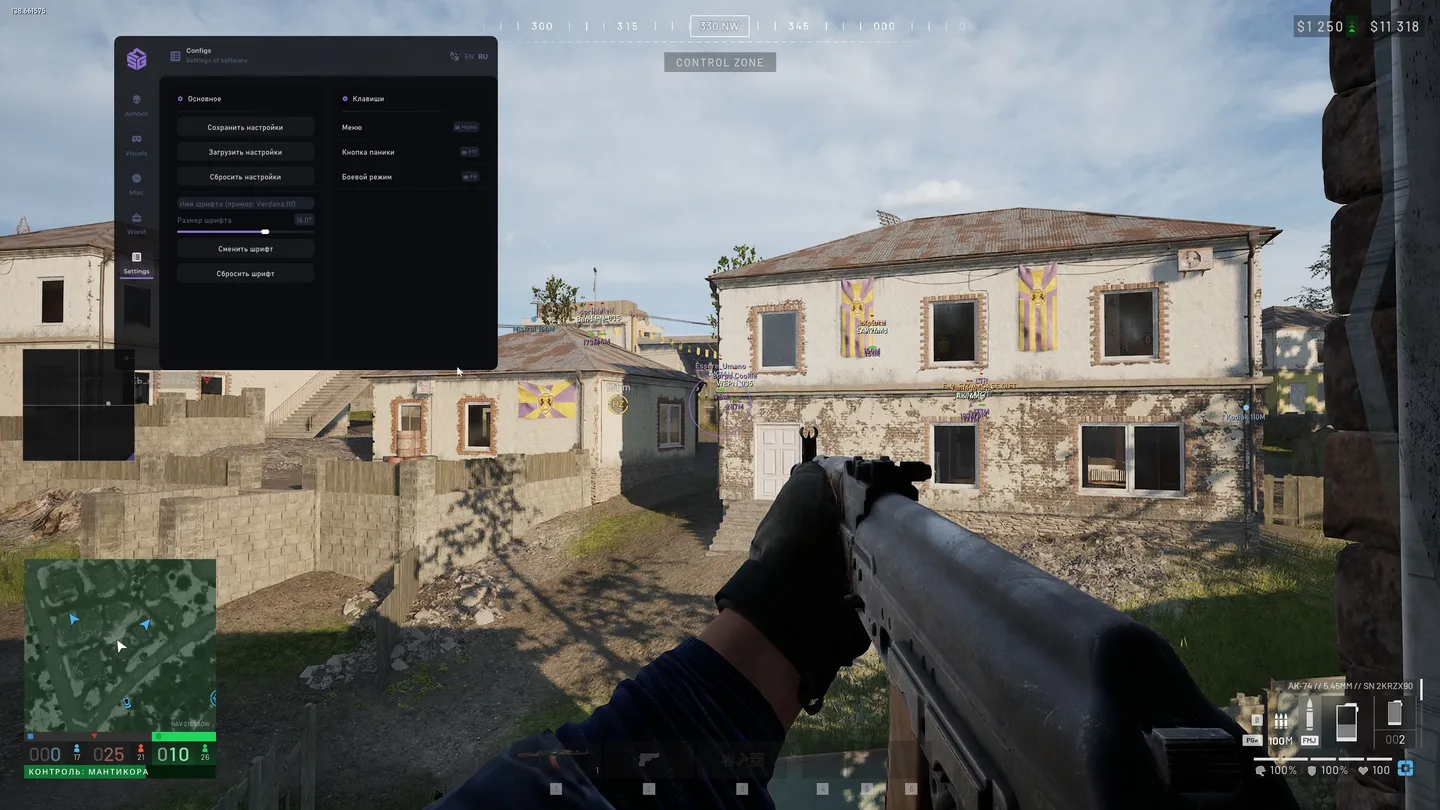
- Save Settings — writes the current setup
- Load Settings — reads a saved setup back
- Reset Settings — returns everything to defaults
- Font Name — a menu typeface of your own, named as a file such as Verdana.ttf
- Font Size — menu text size
- Change Font / Reset Font — applies the typeface or puts the stock one back
- Menu — the key that opens the menu, Home out of the box
- Panic — the emergency key, F11 out of the box
- Battle Mode — the key for battle mode, F8 out of the box


